
Inputs
ReadyText, 1–2 images
Models
Google cinematic video generation
Create cinematic landscape or vertical videos from a written scene, an opening image, or controlled first and last frames, with synchronized dialogue, effects, and ambience.
DreamMotion AI provides an independent workspace for this model. Current controls and credits reflect the verified integration.
Current integration
Veo 3.1 AI Video Generator supports text-to-video and image-to-video creation with an opening image or controlled first and last frames. Choose Fast or Quality, 4–8 seconds, landscape or portrait framing, 720p or 1080p output, and synchronized native audio.
Inputs
ReadyText, 1–2 images
Resolution
Ready720p, 1080p
Aspect ratios
Ready16:9, 9:16
Duration
Ready4s, 6s, 8s
Create on this page
This workspace is preselected for the model. Add a prompt or reference, choose supported settings, and confirm the current credit cost before generating.
Prompt framework
Build stronger Veo 3.1 prompts by defining the subject, ordered action, environment, camera movement, shot sequence, continuity, lighting, audio, and final output constraints.
Write Veo 3.1 direction for a cinematographer and audio team: name the subject and environment, establish the opening, order the action, specify one motivated camera move, define lighting, and finish on a clear frame. Concrete relationships are more useful than quality adjectives.
Make audio cues specific in a Veo 3.1 clip: quote spoken lines, identify the speaker, and write effects beside the action that produces them. Treat ambience as part of the location and give music a defined entrance or change.
Tell Veo 3.1 which facial features, wardrobe, product proportions, labels, materials, architecture, and colors must stay fixed. For two frames, separate what transforms from what remains continuous.
Reusable example
Create a [4, 6, or 8-second] [16:9 or 9:16] cinematic video featuring [subject] performing [ordered action] in [environment]. Begin with [opening composition], use [camera movement and lens direction], and finish on [defined final frame]. Preserve [identity, product, wardrobe, or source-image details]. Quote [dialogue], place [ambience and sound effects] at specific visual beats, and deliver at [720p or 1080p] with synchronized native audio.
Model overview
Veo 3.1 creates a new shot from text or animates a supplied opening frame. Add a second image when the final frame also needs control.
Veo 3.1 AI Video Generator brings Google DeepMind’s cinematic model to the AI video workspace at DreamMotion through APIMart’s official channel. Start from text or establish the opening composition with an image; add a second image, then use final frame control. Veo 3.1 offers 4, 6, and 8-second MP4 output in 16:9 or 9:16. Use 720p across supported durations and 1080p for 8-second generations. Native audio generation happens with the picture, so direct dialogue, ambience, music, and effects inside the same prompt. Choose Veo 3.1 Fast model for iteration and Veo 3.1 Quality model for a higher-fidelity final. The same workspace keeps references, prompts, generation status, recent results, and failed-task refunds together, so the creative direction and production settings remain visible throughout the task.
How to use
Follow the same four-step path from the first input to the final credit review, using only controls available in the current DreamMotion workspace.
Begin with Veo 3.1 Fast model to explore concepts or compare camera directions. Select Veo 3.1 Quality model after the scene structure works. The credit preview updates before submission.
Use Veo 3.1 Text to Video for a written scene. Use Image to Video with one opening frame or add a second compatible image and enable final frame control. Two-frame generation requires an 8-second result; unsupported modes stay hidden.
Apply camera movement control in Veo 3.1 with the subject, action, environment, framing, lighting, and ending. Place quoted dialogue, effects, ambience, and music on specific beats. Protect product or character details and keep vertical action portrait-safe.
Run Veo 3.1 for 4, 6, or 8 seconds, 16:9 or 9:16, and 720p or 1080p. Use 8 seconds for 1080p or a controlled final frame. Check credits before generating; confirmed failures are refunded.
Workflow guide
Start from the asset that already contains the most important creative decisions. The right input mode reduces unnecessary prompt instructions and gives the model a clearer definition of what may change and what must stay consistent.
Compose a new scene from a production brief that defines subject, environment, ordered action, framing, camera movement, lighting, final composition, and synchronized audio. Use Fast to explore the direction and Quality when the successful concept needs a higher-fidelity final.
Best for: Cinematic concepts, dialogue scenes, product films, vertical stories, and sound-aware campaigns.
Upload one image to establish the first frame or add a second compatible image to set the final frame of an 8-second transition. Protect identity, geometry, materials, and composition while describing the physically believable motion and native audio generation between them.
Best for: Portrait animation, product reveals, planned transitions, campaign continuity, and storyboard development.
Capabilities and best use cases
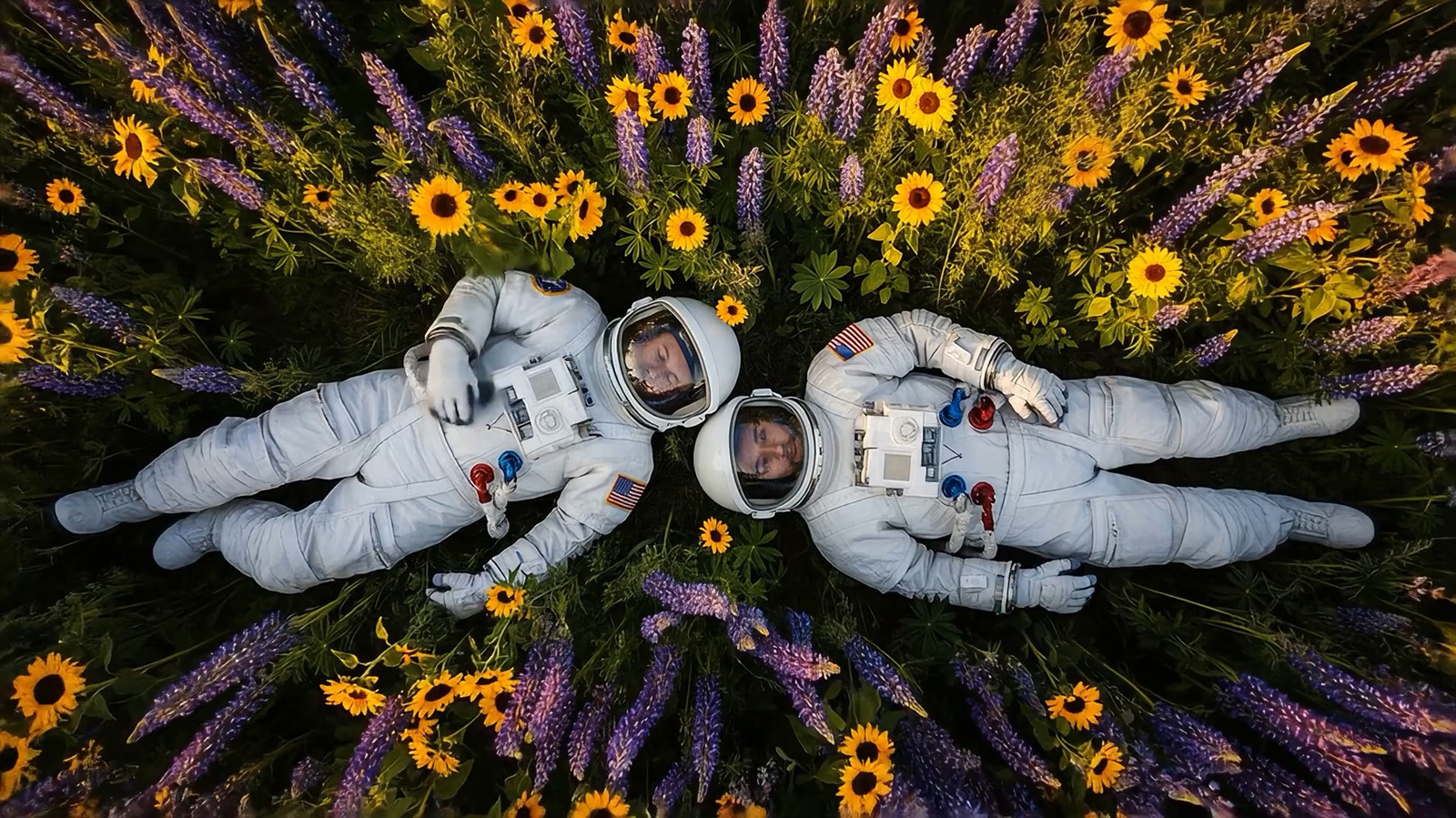
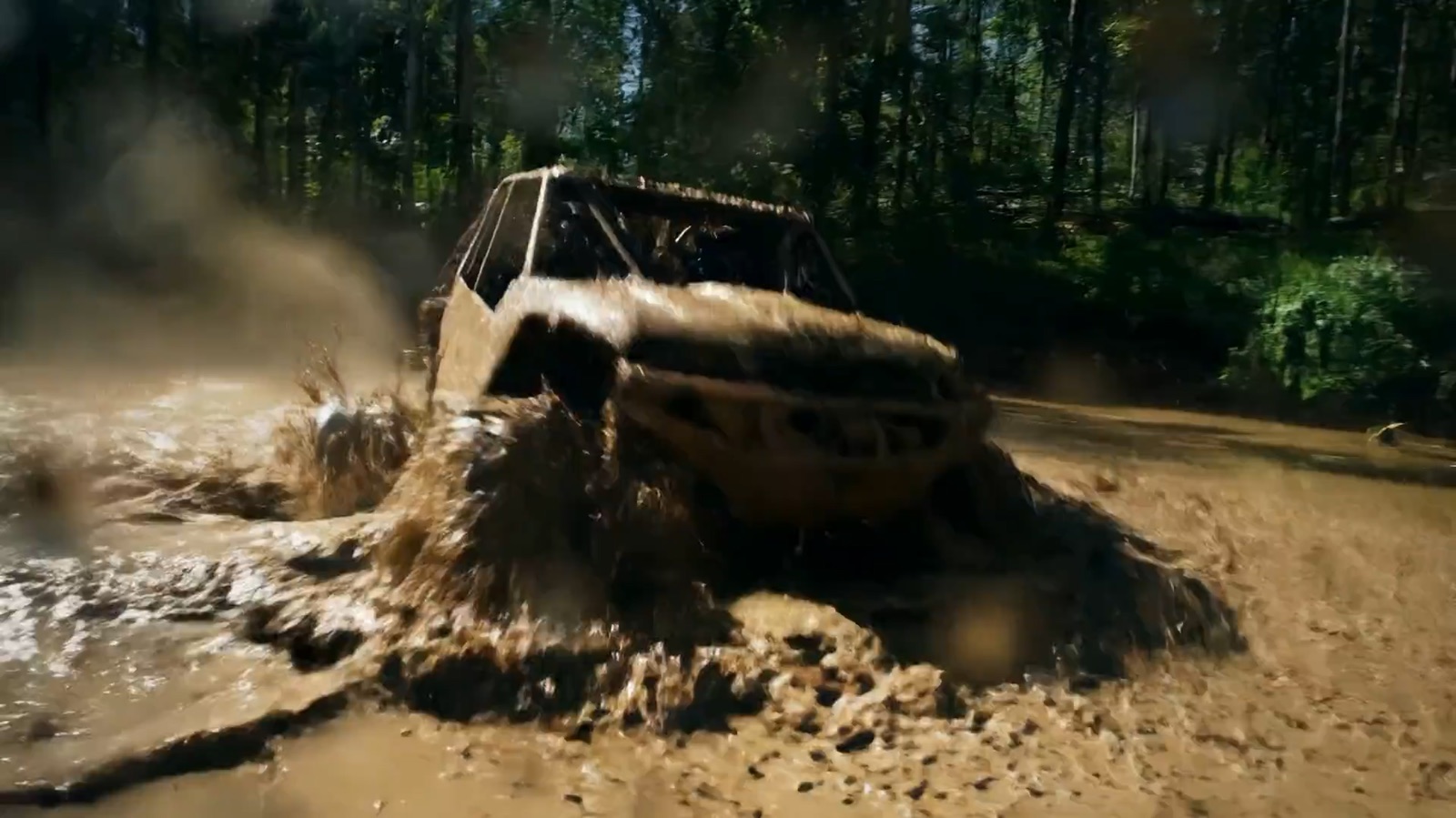
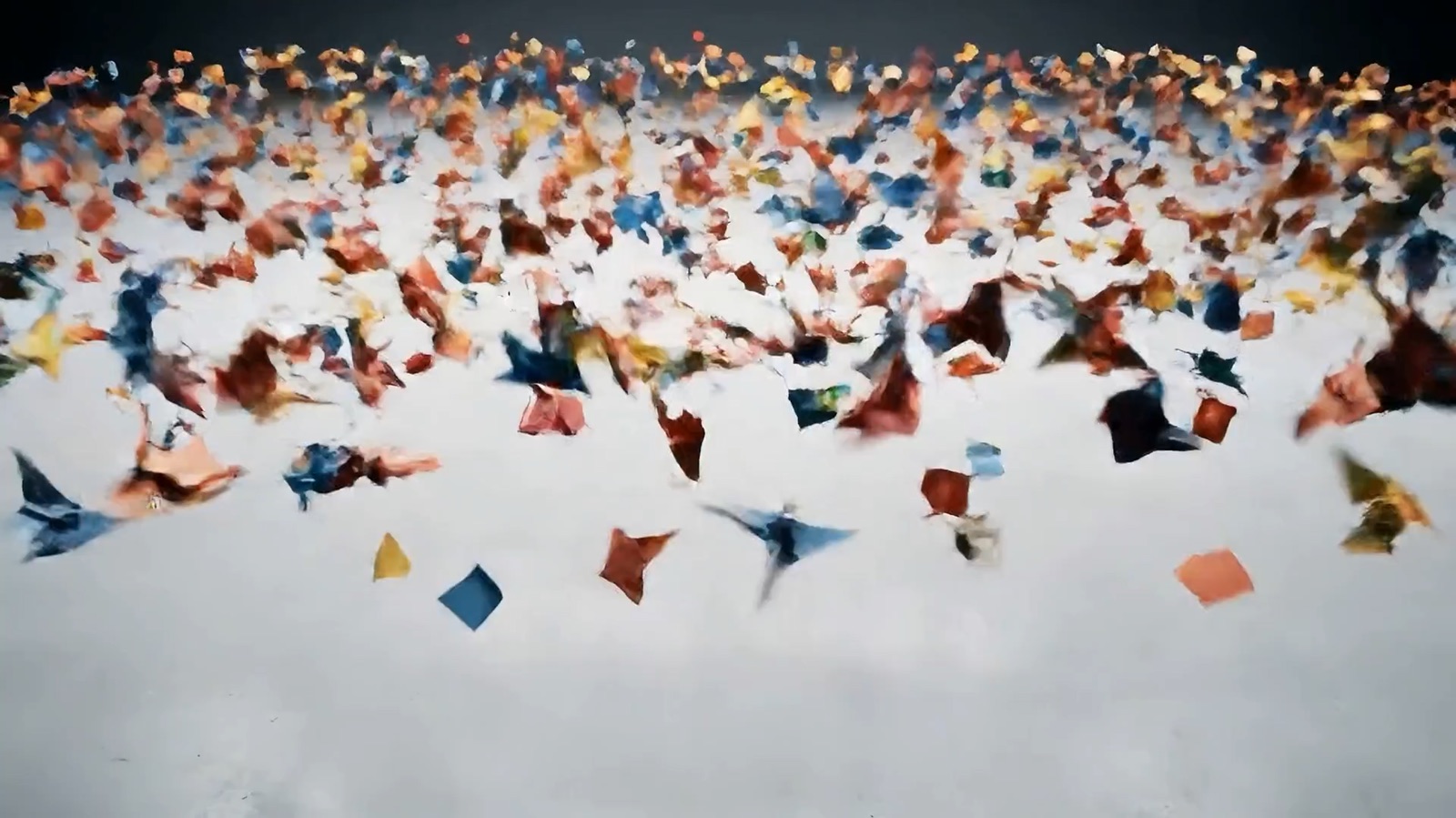
Explore official Veo 3.1 examples for frame control, cinematic camera direction, integrated sound, and stylized motion.
Controlled interpolation
Use compatible images at both ends of an 8-second shot, then take the storyboard to video, directing action, camera, atmosphere, audio, and native timing.
Best for
Capability examples use official google deepmind veo product media from the cited official source.
Open official sourceModel comparison
Choose by generation workflow, duration, creative control, output quality, and current credit range.
Text and image to video
Cinematic prompt-to-video shots
Longer cinematic sequences
2K cinematic video
Cinematic text-to-video scenes
Connected multishot story planning
Choose Veo 3.1 AI Video Generator for cinematic realism, directed camera language, native dialogue, vertical delivery, or a first-to-last-frame transition. Veo 3.1 Fast is the draft option; Veo 3.1 Quality is the higher-fidelity final option. Choose Seedance 2.5 for moving a brief to video across 30 seconds, footage transformation, or larger reference sets. Choose MiniMax H3 for 2K and combined image or footage references. Compare input type, duration, resolution, audio, reference limits, and iteration cost.
Good to know
Clear answers about the current integration, credits, references, and generation behavior.
Veo 3.1 is Google DeepMind’s AI video generator, available as an AI video option in DreamMotion via APIMart. The current page supports text-to-video and image-to-video creation with 4, 6, or 8-second output, 720p or 1080p resolution, and synchronized native audio.
Veo 3.1 Fast model prioritizes lower cost and quicker creative iteration. Veo 3.1 Quality model prioritizes final fidelity and uses more credits. Both options use the same core workspace and input patterns, so a successful Fast prompt can be carried into Quality for a production-oriented final without rebuilding the entire brief.
Yes. Native audio generation is integrated into the result. Quote exact dialogue, identify the speaker, and place ambience or sound effects beside the visible actions that produce them. Keep spoken content realistic for the selected duration; a concise line with clear timing is more reliable than a long script compressed into a few seconds.
Yes. Upload one image to define the first frame and an optional second image; final frame control then guides the closing composition. The first-and-last-frame workflow uses an 8-second result. Choose compatible compositions and describe the physical action with camera movement control while protecting identities, products, setting, and lighting relationships.
DreamMotion AI currently exposes 16:9 and 9:16 output, 4, 6, or 8-second durations, and 720p or 1080p resolution for Veo 3.1. Select 8 seconds for 1080p output. These controls reflect the verified APIMart contract used by this integration rather than every capability that may exist in Google’s own products.
The current Image to Video workspace accepts one opening image and an optional second closing image. It does not expose Google’s separate reference-image or video-extension workflows. This narrower interface keeps the visible controls aligned with the APIMart official endpoint used for submission.
The current Fast option uses five DreamMotion AI credits per generation and the Quality option uses 30. A credit preview appears beside the generation button before submission. Pricing may be updated when provider costs change, and confirmed failed tasks return their reserved credits automatically.
Start inside the embedded workspace or open the full creator to keep more room for references, settings, and generated results.
10 free credits on sign-up · No credit card required