
Inputs
ReadyText, 1–9 images, Video, 2–9 references
Models
Four ways to create motion
Create short videos from text, an image, a video, or multiple visual references with optional synchronized audio.
DreamMotion AI provides an independent workspace for this model. Current controls and credits reflect the verified integration.
Current integration
The Seedance 2.0 AI Video Generator supports text-to-video, image-to-video, video-to-video, and multi-reference workflows. Choose a supported duration, aspect ratio, resolution, and optional audio, then review the exact credit total before submitting the task.
Inputs
ReadyText, 1–9 images, Video, 2–9 references
Resolution
Ready480p, 720p, 1080p, 4K
Aspect ratios
Ready21:9, 16:9, 4:3, 1:1, 3:4, 9:16
Duration
Ready5s, 6s, 7s, 8s, 9s, 10s, 11s, 12s, 13s, 14s, 15s
Create on this page
The workspace is preselected for this model. Add a prompt or references, choose supported settings, and review the exact credit total before generating.
Prompt framework
Build stronger Seedance 2.0 prompts by defining the subject, ordered action, environment, camera movement, shot sequence, continuity, lighting, audio, and final output constraints.
Explain what changes during the shot, how the subject moves, and how the camera responds.
Write subject, action, camera, environment, lighting, pacing, and audio as one coherent direction.
For multi-reference work, select clear assets that support the same subject, style, and intended composition.
Reusable example
Create a [duration] [aspect ratio] video featuring [subject] performing [ordered action] in [environment]. Begin with [opening shot], move the camera using [camera movement], transition through [shot sequence], and end on [final frame]. Preserve [identity, wardrobe, product, or reference details], use [lighting and color direction], include [dialogue, ambience, music, or sound effects], avoid [unwanted motion or artifacts], and deliver at [resolution] with coherent motion and synchronized audio.
Model overview
Seedance 2.0 is a multimodal video creation model for generating a new shot from text, animating a still image, transforming existing footage, or combining several visual references. These four starting points let you choose between open-ended creation and tighter control over identity, composition, movement, environment, and style.
Seedance 2.0 powers the current DreamMotion AI video workspace. It keeps text-to-video, image-to-video, video-to-video, and references-to-video in one interface with a clear credit preview before generation. The same workspace keeps references, prompts, generation status, recent results, and failed-task refunds together, so the creative direction and production settings remain visible throughout the task.
How to use
Follow the same four-step path from the first input to the final credit review, using only controls available in the current DreamMotion workspace.
Select Text to Video for a new scene, Image to Video for controlled animation, Video to Video for transformation, or References to Video for broader visual direction.
Describe the subject, ordered action, environment, camera movement, lighting, pacing, and audio. Assign every reference a specific role.
Choose a supported duration, aspect ratio, resolution, and optional audio according to the final channel and production goal.
Check the exact credit total shown for the selected duration and resolution before submission. Confirmed failed tasks are refunded automatically.
Workflow guide
Start from the asset that already contains the most important creative decisions. The right input mode reduces unnecessary prompt instructions and gives the model a clearer definition of what may change and what must stay consistent.
Start with a written brief when the scene does not depend on an existing asset. Describe the subject, ordered action, environment, camera path, lighting, pacing, and sound so the model can build the complete shot from one direction.
Best for: Original concepts, cinematic scenes, social clips, and early story development.
Use one source image when composition, identity, product design, or art direction is already established. Prompt the motion that should change while identifying the facial features, objects, framing, and background details that need to remain stable.
Best for: Portrait animation, product reveals, campaign assets, and illustrated scenes.
Begin with a clip when timing and physical movement already exist. Direct the new visual treatment, materials, atmosphere, or camera character while protecting the original action arc and the moments that make the source footage readable.
Best for: Style transformation, shot refinement, visual experiments, and alternate treatments.
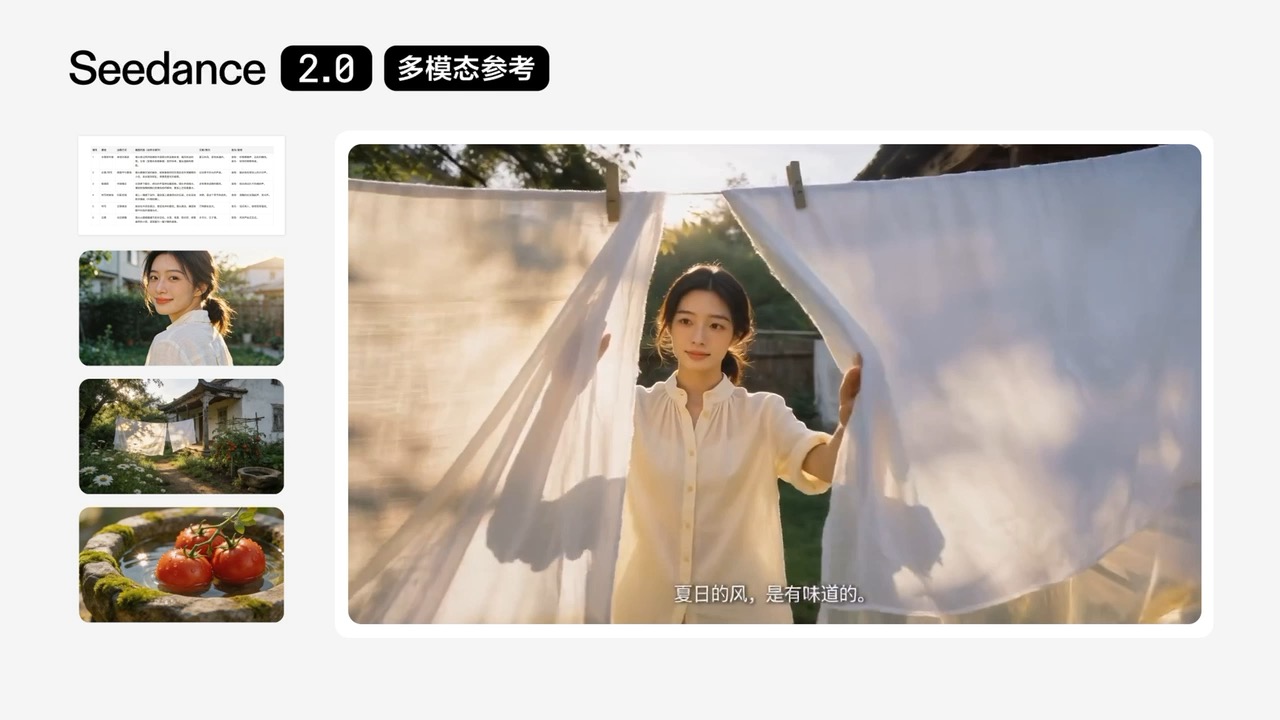
Combine several compatible references when different assets need to control character identity, wardrobe, environment, props, composition, or style. Give every reference a clear role and state which details must remain consistent throughout the sequence.
Best for: Character continuity, branded stories, product direction, and reference-led production.
Capabilities and best use cases
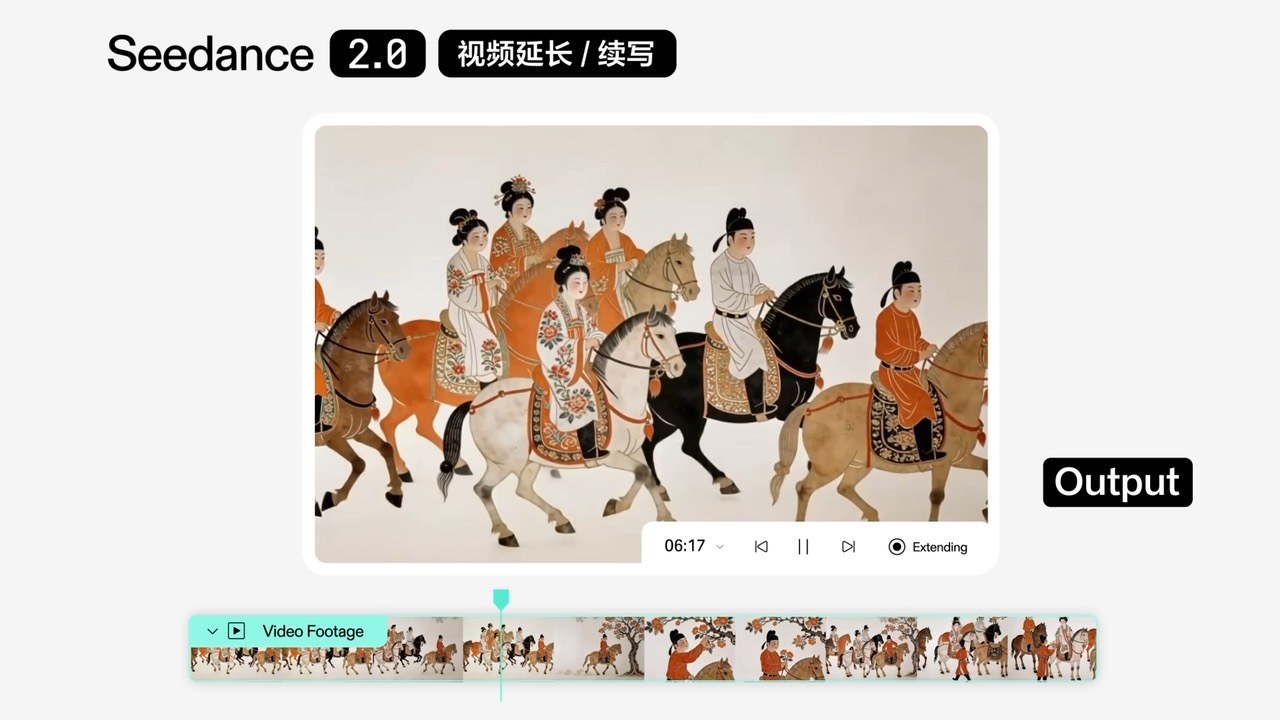
Explore Seedance 2.0 examples for complex motion, longer continuity, reference-led direction, and audio-aware storytelling, illustrated with official product media.
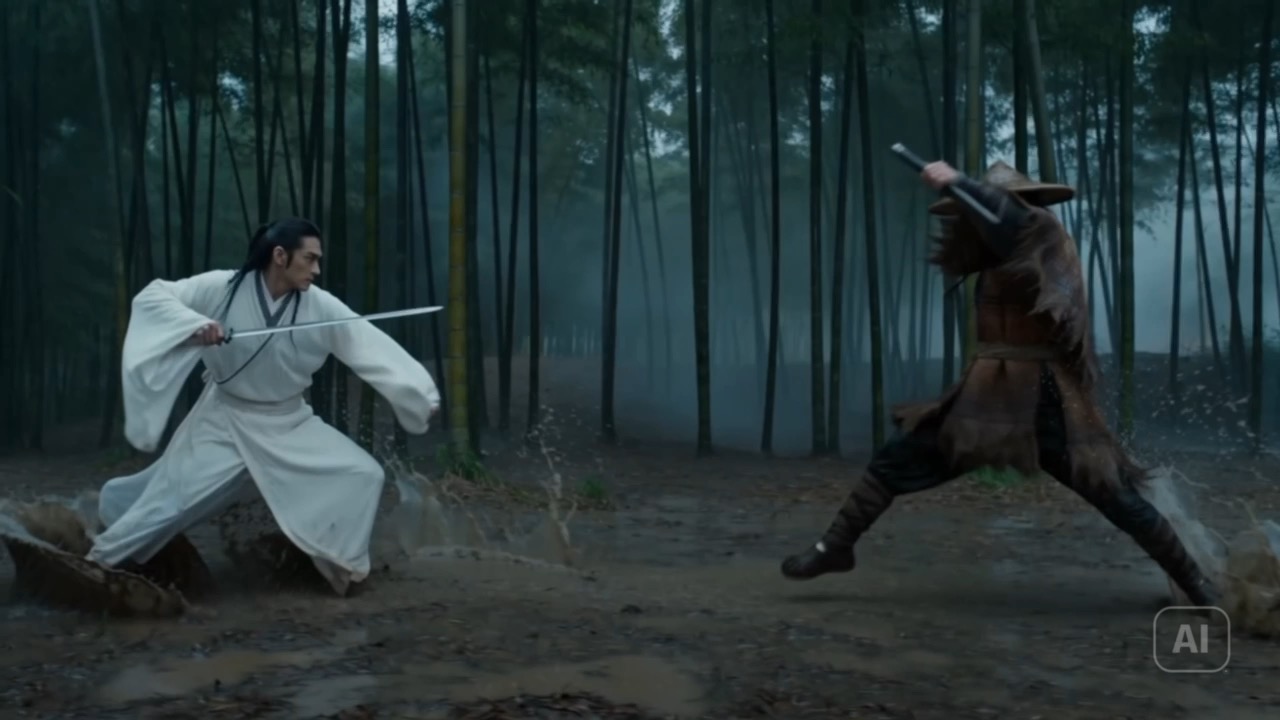
Dynamic subject movement
Direct interacting subjects, ordered movement, timing, and camera response together so fast choreography remains fluid, readable, and visually focused.
Best for
Capability examples use official bytedance seedance 2.0 product media from the cited official source.
Open official sourceModel comparison
Choose by generation workflow, duration, creative control, output quality, and current credit range.
Text and image to video
Cinematic prompt-to-video shots
Longer cinematic sequences
2K cinematic video
Cinematic text-to-video scenes
Connected multishot story planning
Choose Seedance 2.0 when you need text, image, existing-video, and multi-reference starting points with output up to 4K and a shorter 5–15 second production window. Choose Seedance 2.5 when a brief benefits from a longer sequence up to 30 seconds, more image references, MP4 or MOV source footage, and stronger continuity planning at 480p or 720p. Compare video models by the inputs they accept, maximum duration, output resolution, reference limits, audio behavior, and current credit range.
Good to know
Clear answers about the current integration, credits, references, and generation behavior.
DreamMotion AI supports Text to Video for new scenes, Image to Video for animating a still, Video to Video for transforming existing footage, and References to Video for directing a sequence with several visual sources. Choose the mode that already contains the most important creative decisions for the shot.
Yes. Generate audio can be enabled when the brief benefits from dialogue, ambience, music, or sound effects. Describe important sounds and their timing in the prompt so they support the visible action and camera rhythm instead of behaving like a separate layer.
Image to Video uses one source image, while References to Video accepts two to nine images. Use clear, compatible assets and assign each one a specific role such as character identity, wardrobe, product detail, environment, composition, movement, or visual style.
The current workspace offers continuous 5–15 second durations; 480p, 720p, 1080p, or 4K resolution; and seven aspect-ratio options including landscape, portrait, square, ultrawide, and adaptive output. Available controls come from the same verified configuration used for submission.
The cost changes with resolution and duration. The generator calculates the exact requirement from the selected settings and shows it before submission. If the account balance is below that amount, the generation button remains unavailable until enough credits are added.
DreamMotion AI returns the reserved credits after the task reaches a confirmed failed state.
Start inside the embedded workspace or open the full creator to keep more room for references, settings, and generated results.
10 free credits on sign-up · No credit card required