
Inputs
ReadyText, 1–2 images, 2–12 references
Models
One workspace for the Kling 3.0 model family
The Kling 3.0 AI Video Generator brings Kling 3.0, Kling 3.0 Omni, and Kling 3.0 Motion Control into one workspace. Create from text, animate first and last frames, combine subject references, edit a source video, guide a shot with feature footage, or transfer motion from a reference clip.
DreamMotion AI provides an independent workspace for this model. Current controls and credits reflect the verified integration.
Current integration
The Kling 3.0 AI Video Generator combines Kling 3.0, Omni, and Motion Control for text, frames, Elements, image references, video editing, and motion transfer. Select a model to reveal its supported duration, resolution, audio, multi-shot, and reference controls.
Inputs
ReadyText, 1–2 images, 2–12 references
Resolution
Ready720p, 1080p, 4K
Aspect ratios
Ready16:9, 9:16, 1:1
Duration
Ready3s, 4s, 5s, 6s, 7s, 8s, 9s, 10s, 11s, 12s, 13s, 14s, 15s
Create on this page
The workspace is preselected for this model. Add a prompt or references, choose supported settings, and review the exact credit total before generating.
Prompt framework
Build stronger Kling 3.0 prompts by naming the control source first, assigning every frame, Element, image, or video one role, and then defining the ordered action, camera path, shot timing, protected details, sound behavior, and delivery constraints.
Decide whether text, a first frame, several subject views, a source video, or reference motion contains the decisions that matter most. Then describe only what the selected asset does not already establish.
Use first and last frames for composition, @name Elements for recurring subjects, numbered image references for Omni guidance, and base or feature video behavior for footage. Avoid assigning conflicting roles to the same detail.
Describe the opening state, ordered action, camera path, and closing beat. For custom multi-shot work, keep every shot focused and make the shot durations equal the selected output duration.
Reusable example
Create a [3–15 second] [16:9, 9:16, or 1:1] video in which [subject or @element_name] performs [ordered action] in [environment]. Use [text, first frame, last frame, numbered Omni images, base video, feature video, or motion reference] to control [specific detail]. Begin with [opening beat], move the camera along [path], divide the action into [automatic or custom shots], and finish on [closing state]. Preserve [identity, product geometry, wardrobe, and scene details], synchronize [dialogue, ambience, music, or effects] when available, exclude [unwanted motion or artifacts], and deliver at [720P, 1080P, or 4K].
Model overview
The Kling 3.0 AI Video Generator covers open creation and reference-controlled production. Your selected model determines whether the task starts with text, frames, subject views, a clip, or a character-and-motion pair.
The Kling 3.0 AI Video Generator organizes three related models around their strongest inputs. Kling 3.0 handles prompts, first and last frames, subject Elements, negative prompts, automatic or custom multi-shot direction, synchronized audio, and 720P through 4K output. Kling 3.0 Omni adds flexible image references and Video to Video: edit a base clip or use feature footage to guide a new result. Kling 3.0 Motion Control pairs one character image with one performance video and can follow either source orientation. Every task is validated, priced before submission, saved to history, and copied to durable storage after completion. The same workspace keeps references, prompts, generation status, recent results, and failed-task refunds together, so the creative direction and production settings remain visible throughout the task.
How to use
Follow the same four-step path from the first input to the final credit review, using only controls available in the current DreamMotion workspace.
Use Kling 3.0 for text, frames, Elements, multi-shot, audio, and 4K; Omni for reference-led or Video to Video work; or Motion Control for image-and-video performance transfer.
Upload first and last frames, 2–4 views for each subject Element, one editable or feature video, or the character-image and motion-video pair required by Motion Control.
Write the motion and camera brief, add a negative prompt where useful, choose automatic or custom shots, and decide whether to generate audio or retain eligible original sound.
Choose a supported duration, aspect ratio, resolution, and watermark setting. The Kling 3.0 AI Video Generator displays the calculated credits before submission and records the controls in history.
Workflow guide
Start with the source that holds the most important creative decision. Text leaves the scene open, frames control composition, Elements protect subjects, Video to Video preserves footage logic, and Motion Control transfers performance. This tells the Kling 3.0 AI Video Generator what may change.
Create an original scene from subject, action, environment, camera, light, and closing beat. Add synchronized sound or multi-shot control when the concept needs them.
Best for: Cinematic concepts, product films, social stories, advertising, multi-shot sequences, and AI video with audio.
Upload a first frame and optional last frame, then describe the action and camera path while protecting identity, geometry, materials, and composition.
Best for: Portrait animation, product reveals, first and last frame video, storyboards, and controlled transitions.
Build an @name Element from two to four subject views, or use Omni images to guide identity, setting, objects, composition, or style. Give every source one role.
Best for: Recurring characters, branded products, ensemble scenes, style direction, and reference-led campaigns.
Choose Base to edit a clip while retaining its duration, or Feature to guide a new result with footage and an optional first frame. Original sound can be kept.
Best for: Footage restyling, alternate treatments, motion guidance, source-video refinement, and sound-preserving edits.
Pair one character image with one motion video. Follow Image supports up to 10 seconds; Follow Video supports up to 30 seconds. Refine environment, camera, and style in the prompt.
Best for: Dance transfer, character performance, gesture matching, athletic motion, and reusable movement studies.
Capabilities and best use cases
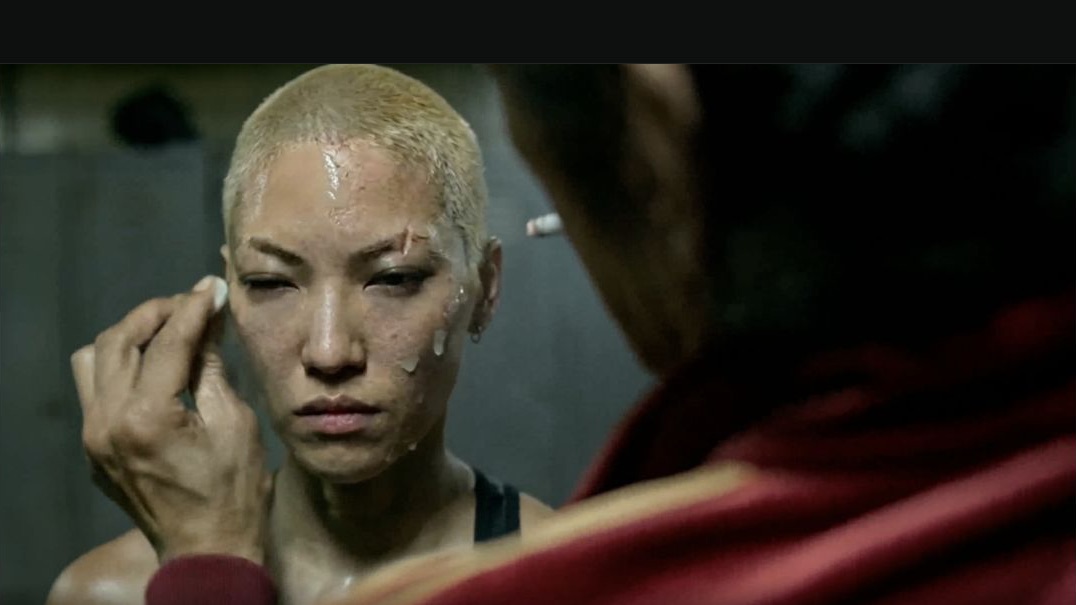
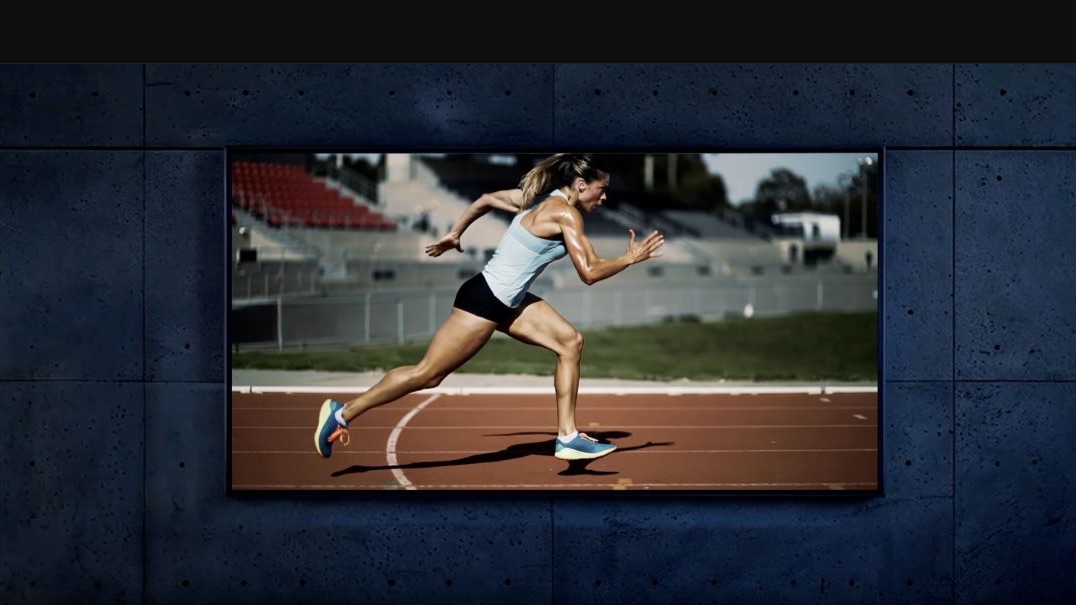
Explore official Kling 3.0 video examples for photorealistic performance, character consistency, and readable dynamic motion. Use them to study camera distance, body mechanics, light, texture, identity protection, and closing composition before choosing a workflow in the Kling 3.0 AI Video Generator.
Official Kling 3.0 launch showcase
Study how body mechanics, lens position, contrast, texture, and expression combine into one believable human performance.
Best for
Capability examples use official kling ai 3.0 launch showcase from the cited official source.
Open official sourceModel comparison
Choose by generation workflow, duration, creative control, output quality, and current credit range.
Text and image to video
Cinematic prompt-to-video shots
Longer cinematic sequences
2K cinematic video
Cinematic text-to-video scenes
Connected multishot story planning
Choose the Kling 3.0 AI Video Generator when a project needs both open creation and reference control. Use the base model for text, frames, Elements, multi-shot storytelling, generated audio, or 4K; Omni for image guidance, video editing, feature footage, or retained sound; and Motion Control when footage supplies movement while a still image protects identity. Veo 3.1 suits fixed 4, 6, or 8 second cinematic output, while Seedance is useful for longer multimodal work. Compare source assets, duration, sound, resolution, and credits before submitting.
Good to know
Clear answers about the current integration, credits, references, and generation behavior.
DreamMotion supports Text to Video, Image to Video, References to Video, Video to Video, and Motion Control through three Kling models. Controls include first and last frames, Elements, negative prompts, multi-shot direction, generated or retained audio, watermarks, and resolution up to 4K where available.
Choose Kling 3.0 for prompts, frames, Elements, multi-shot output, generated audio, and 4K. Choose Omni for flexible image references or video editing. Choose Motion Control when a still image defines the character and footage supplies the performance.
Base edits a 3–10 second source clip and follows its duration. Feature uses footage as guidance for a selected 3–15 second result and accepts one optional first frame. Either mode can retain original sound; separate audio generation is unavailable with a video reference.
An Element is a named subject built from two to four images; up to three can be called with @name. Multi-shot mode plans a sequence automatically or accepts up to six custom shots whose durations equal the selected output length.
Upload one character image and one MP4 or MOV video. Follow Image accepts 3–10 second footage; Follow Video accepts 3–30 seconds. The reference clip sound can be retained or removed.
Start inside the embedded workspace or open the full creator to keep more room for references, settings, and generated results.
10 free credits on sign-up · No credit card required