
Inputs
ReadyText and up to 5 reference images
Models
Professional multimodal image creation
The Seedream 5.0 Pro AI Image Generator combines text to image generation with reference-guided image to image editing. Create structured infographics, multilingual campaign layouts, realistic photography, and commercial visuals from a written brief, or upload up to five reference images to guide subjects, composition, products, colors, and precise edits. Choose from seven aspect ratios and export at 1K or 2K without leaving the DreamMotion workspace.
DreamMotion AI provides an independent workspace for this model. Current controls and credits reflect the verified integration.
Current integration
The Seedream 5.0 Pro AI Image Generator supports text to image creation from a written prompt and image to image editing with up to five reference images. Choose from seven supported aspect ratios, select 1K or 2K output, and review the current 2- or 3-credit total before generation.
Inputs
ReadyText and up to 5 reference images
Resolution
Ready1K, 2K
Aspect ratios
Ready1:1, 2:3, 3:2, 3:4, 4:3, 9:16, 16:9
Quality
ReadySingle quality level
Create on this page
The workspace is preselected for this model. Add a prompt or references, choose supported settings, and review the exact credit total before generating.
Prompt framework
Build stronger Seedream 5.0 Pro prompts by defining the deliverable, reading order, exact multilingual copy, reference roles, edit target, protected details, and review requirements before adding decorative styling.
Name the final asset first: an infographic, product page, poster, editorial photograph, menu, campaign key visual, or localized layout. Define the audience, placement, canvas, primary message, focal point, and the order in which information should be read. For structured graphics, list the required sections and explain which chart, diagram, label, or image belongs in each area. This gives Seedream 5.0 Pro a clear design problem to solve instead of an unordered collection of facts and style words.
When references are present, identify them by number and state exactly what each one controls. One image may define the subject, another the product, a third the composition, and a fourth the material or palette. For editing, name the target region or object, describe the requested change, and explicitly list what must remain unchanged. Avoid vague pronouns such as “it” when several objects are visible. Clear reference roles make preservation and spatial editing easier to evaluate.
Place required visible wording in quotation marks and specify the language, spelling, hierarchy, alignment, position, scale, and reading direction. For localization, say which structural elements must remain fixed and whether the layout must adapt for longer copy or right-to-left reading. Generated text, numbers, charts, and translations can still contain errors, so proofread every character and verify every fact before publishing, printing, or using the asset in a customer-facing campaign.
Reusable example
Create a [high-density infographic, multilingual campaign layout, product page, editorial photograph, or precise image edit] for [audience and placement]. Establish [primary message and focal point], then organize [required sections, charts, labels, subjects, and supporting elements] in this reading order: [order]. Render the exact visible text “[approved copy]” in [language, hierarchy, alignment, and location]. Image 1 defines [subject or base image], Image 2 controls [product or layout], and Image 3 guides [materials, palette, or atmosphere]. Change only [target region or object], preserve [protected details], use [lighting and physical material direction], avoid [unwanted elements], and deliver a reviewed [aspect ratio] image at [1K or 2K].
Text to image and image to image workflows
Start with text to image generation when you are creating a new visual from a written production brief. Use the image to image workflow when an existing subject, product, composition, or layout needs to guide the result.
Describe the final deliverable, subject, composition, reading order, exact visible text, lighting, materials, and output format. Seedream 5.0 Pro can turn the brief into infographics, posters, product layouts, editorial photography, and other structured visual assets.
Choose 1K for early exploration or 2K when the direction is ready for a more detailed result.
Upload up to five reference images and explain the role of each one. A reference can guide subject identity, product appearance, composition, materials, color, or the specific region that should change.
For precise image to image editing, identify the edit target and state which details must remain unchanged.
How to use
Follow the same four-step path from the first input to the final credit review, using only controls available in the current DreamMotion workspace.
Start with text to image when you need a completely new composition. Add reference images for an image to image workflow when the task depends on an existing subject, product, layout, visual identity, or edit target.
Define the deliverable, audience, content hierarchy, subjects, reference roles, exact visible copy, protected details, visual direction, and review requirements.
Choose one of seven supported aspect ratios and use 1K for direction testing or 2K when the composition is ready for a more detailed output.
Review composition, identity, text, facts, spatial edits, materials, and edge quality separately. Revise one problem at a time instead of replacing the entire brief after each result.
Capabilities and best use cases
Explore official Seedream 5.0 Pro examples for high-density information design, precise editing, multilingual layouts, and photographic visual quality.
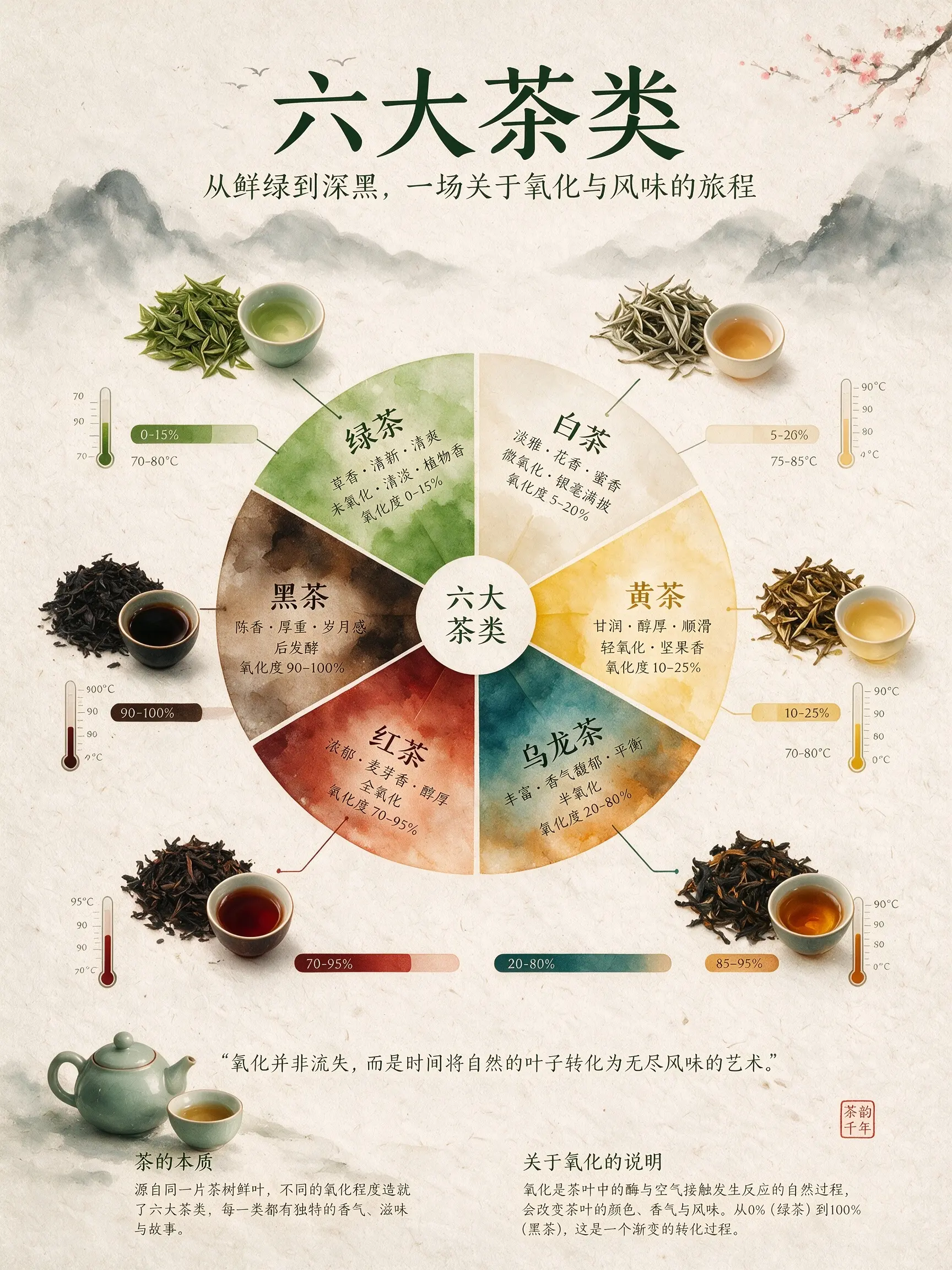
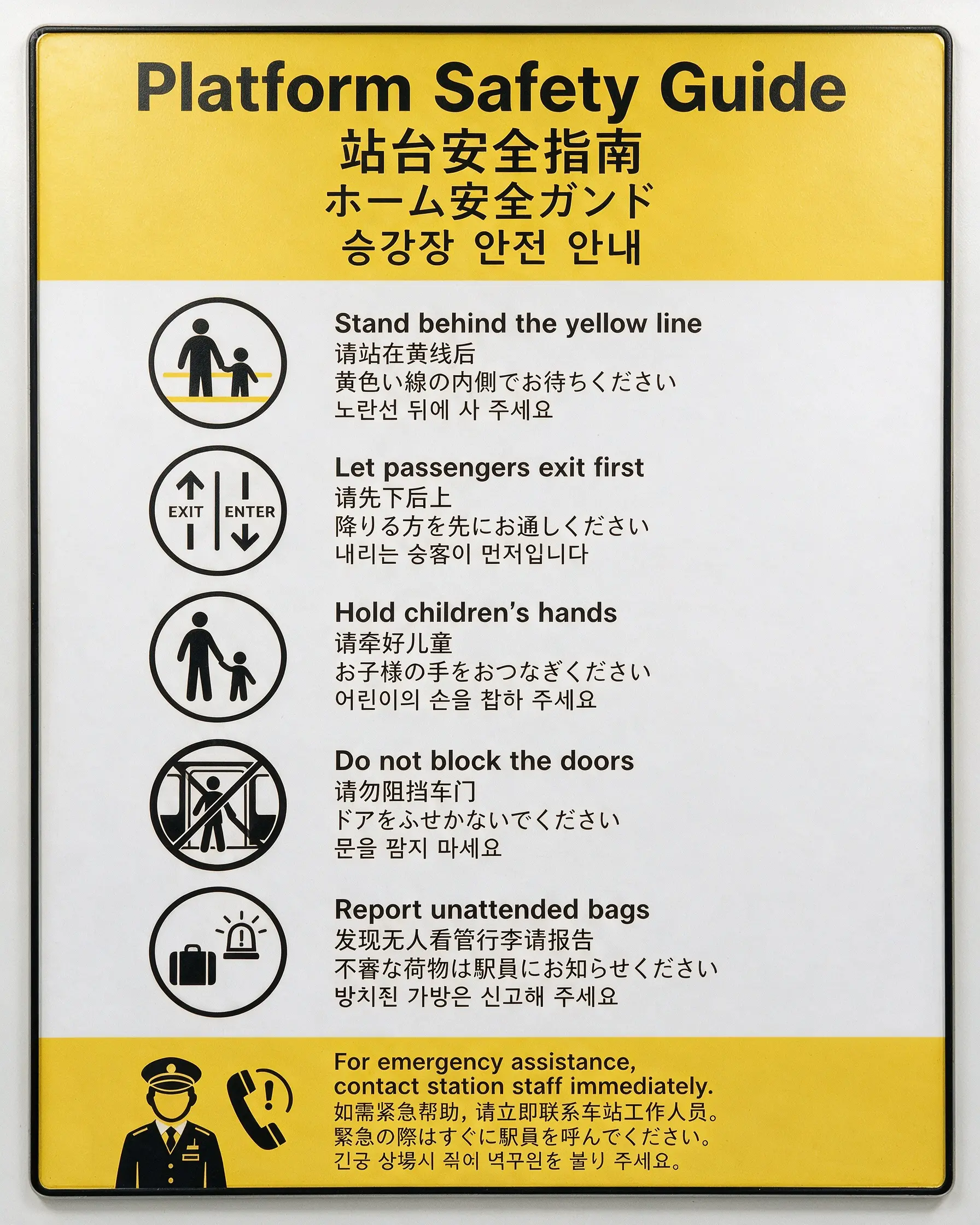
High-density information design
Direct the reading order, charts, labels, comparisons, supporting imagery, and overall hierarchy together. Seedream 5.0 Pro is most useful when every data element has an explicit role and the final visual still needs a coherent editorial character.
Best for
Capability examples use official bytedance seedream 5.0 pro model media from the cited official source.
Open official sourceModel comparison
Choose by creative role, control, and current credit range instead of assuming the heaviest model fits every brief.
Rapid concept exploration
Detailed campaign artwork
Typography and poster graphics
High-density infographics
Choose Seedream 5.0 Pro when the brief depends on structured information, complex layout planning, multilingual visible text, localized design, or a precise edit guided by references and spatial instructions. GPT Image 2 is a strong alternative for general typography, contextual reasoning, and selectable Standard, Medium, or High quality. Nano Banana 2 remains the efficient choice for rapid iteration and everyday campaign variations, while Nano Banana Pro is useful for detailed Google-model art direction. Compare the required text language, information density, reference roles, output size, and current credit total before selecting a model. For regulated, factual, or customer-facing materials, treat every generated chart, label, translation, and claim as a draft that requires human review.
Good to know
Clear answers about the current integration, credits, references, and generation behavior.
Seedream 5.0 Pro text to image generation starts from a written production brief. Describe the intended asset, subject, composition, information hierarchy, exact visible copy, visual style, lighting, and final format. You can then choose one of seven supported aspect ratios and generate at 1K or 2K resolution.
Seedream 5.0 Pro is especially useful for high-density infographics, multilingual posters, product-detail layouts, localized campaigns, realistic commercial photography, reference-led compositions, and precise edits. It is a practical choice when information hierarchy, visible copy, physical materials, or a controlled edit matters as much as overall visual appeal. The official examples on this page show several distinct production roles rather than one preferred aesthetic.
Yes. The Seedream 5.0 Pro image to image workflow accepts up to five reference images in the current DreamMotion integration. Use references to guide subject identity, products, composition, materials, colors, or a precise edit. Clearly identify what should change and which parts of the original image must remain unchanged.
The model is positioned for native multilingual generation and localized layouts. Quote the approved copy, state its language and reading direction, and define placement, hierarchy, alignment, and scale. For translation work, provide reviewed target-language copy rather than asking the image model to make final legal or marketing translations. Always proofread names, numbers, accents, punctuation, prices, small labels, and right-to-left layout before release.
DreamMotion AI currently exposes 1K and 2K output with seven canvas choices: 1:1, 2:3, 3:2, 3:4, 4:3, 9:16, and 16:9. Select the final placement before writing the composition so the model can reserve appropriate space for subjects, charts, copy, and supporting elements. This integration does not advertise a 4K Seedream 5.0 Pro option because the connected provider endpoint is currently verified up to its 2K tier.
The current DreamMotion integration uses 2 credits for a 1K image and 3 credits for a 2K image, based on the verified APIMart account rates for each output tier. The generator displays the exact total before submission. Provider pricing and platform credit policy can change, so the live value shown in the workspace is the authoritative amount for a new request. Failed jobs receive the standard confirmed-failure credit refund.
Seedream 5.0 Pro is positioned here for structured professional layouts, dense information, multilingual generation, realistic materials, and grounded edits. GPT Image 2 adds selectable quality tiers and is a strong general option for typography and contextual scenes. Nano Banana 2 emphasizes fast everyday iteration, while Nano Banana Pro supports detailed multi-reference art direction. Choose by the brief, required controls, and review burden rather than assuming one model is best for every image.
Yes. Add up to five reference images to guide the subject, composition, or visual direction before generating.
DreamMotion AI automatically returns the reserved credits when a generation job reaches a confirmed failed state.
Start inside the embedded workspace or open the full creator to keep more room for references, settings, and generated results.
10 free credits on sign-up · No credit card required