Home

One workspace for AI images and AI videos

DreamMotion AI Image & Video Generator

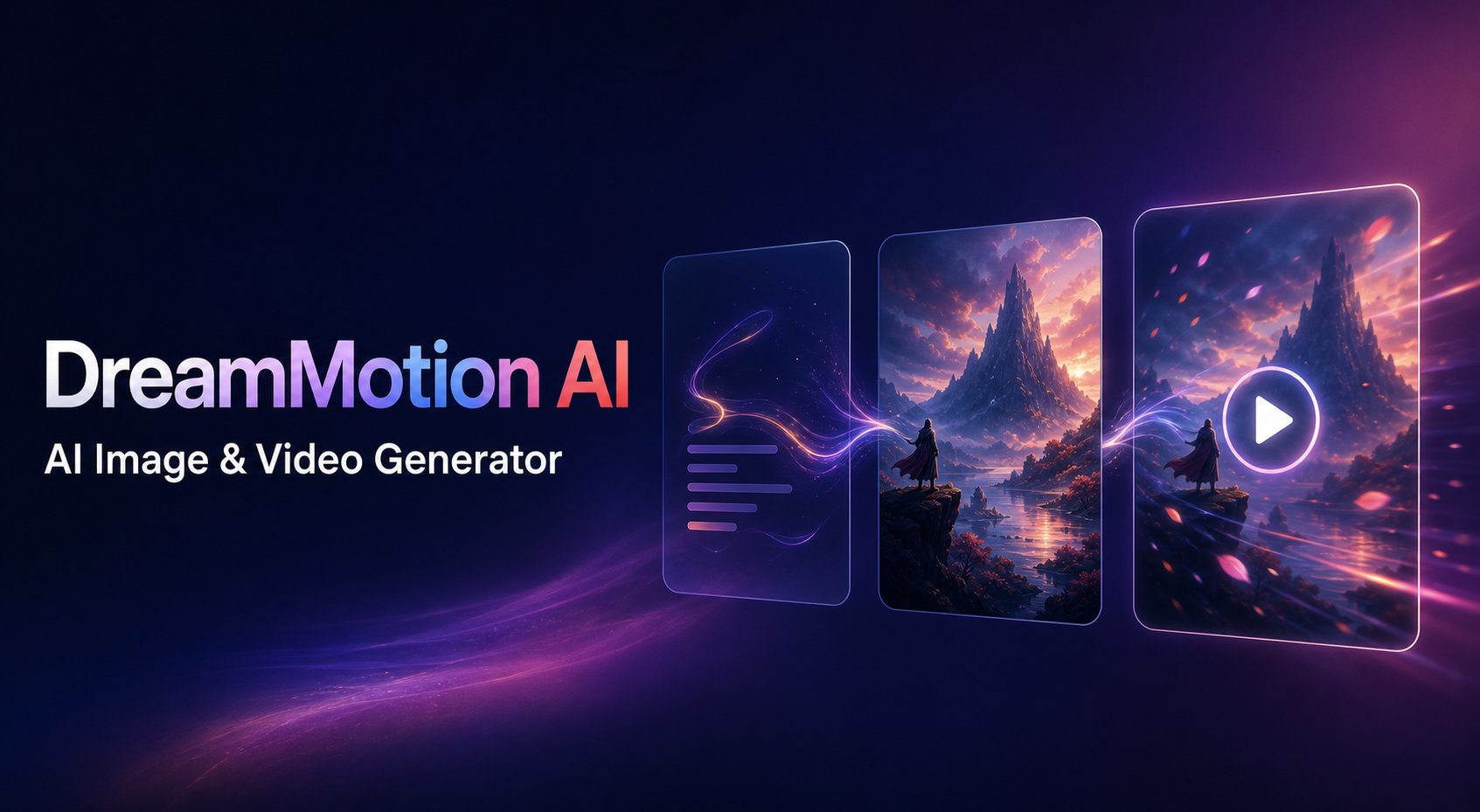
Turn a prompt into an image, transform reference media into a fresh visual, or create motion from text, images, and short videos. DreamMotion AI connects an AI image generator, AI video generator, editing tools, and prompt inspiration in one focused creative workspace.

Prompt to imageText, image, or video to videoMulti-reference creation

Creative flow

Prompt or reference → Image or motion

The creative toolkit

Create AI images and videos without breaking your flow

DreamMotion brings the essential stages of visual creation together. Use the AI Image Generator to create, reference, and edit a strong frame, then continue with the AI Video Generator when the idea needs movement, pacing, and cinematic direction.

Swipe to explore all six creative tools

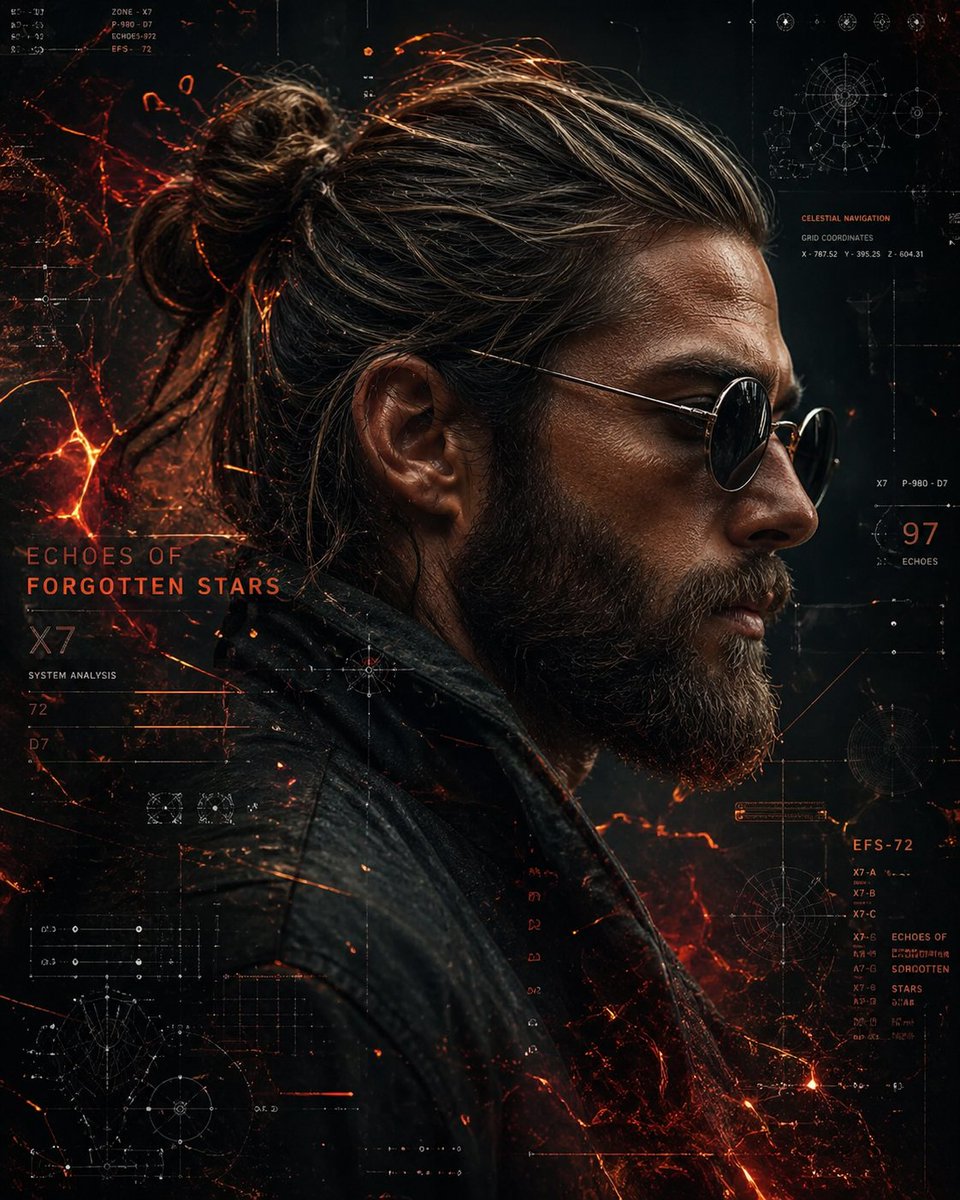
Futuristic cinematic portrait with glowing technical overlays

Prompt in, picture out

Text to Image

Describe a subject, setting, composition, and style. The DreamMotion AI image generator turns that direction into a polished visual you can refine for campaigns, stories, products, or personal work.

Generate an image
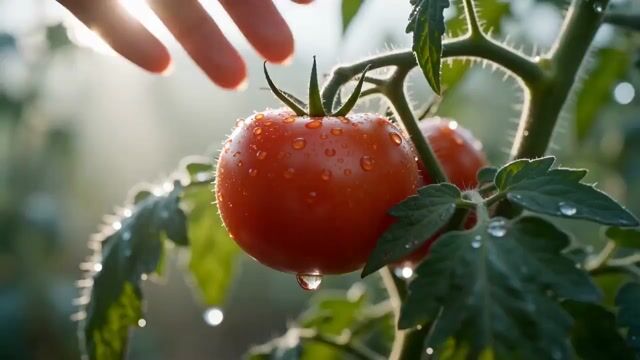
Four ways to create motion

AI Video Generator

Start with a prompt, still image, short MP4, or two to nine visual references. Guide the motion, camera, atmosphere, and optional native audio in the DreamMotion AI video workspace.

  • Text to Video
  • Image to Video
  • Video to Video
  • References to Video
Open video generator
Reference frame guiding the Seedance videoBefore
After

Animate any frame

Image to Video

Upload a still image and guide its camera movement, subject motion, and atmosphere with natural language. DreamMotion uses the reference frame to help carry its composition and visual direction into an expressive video.

Animate an image
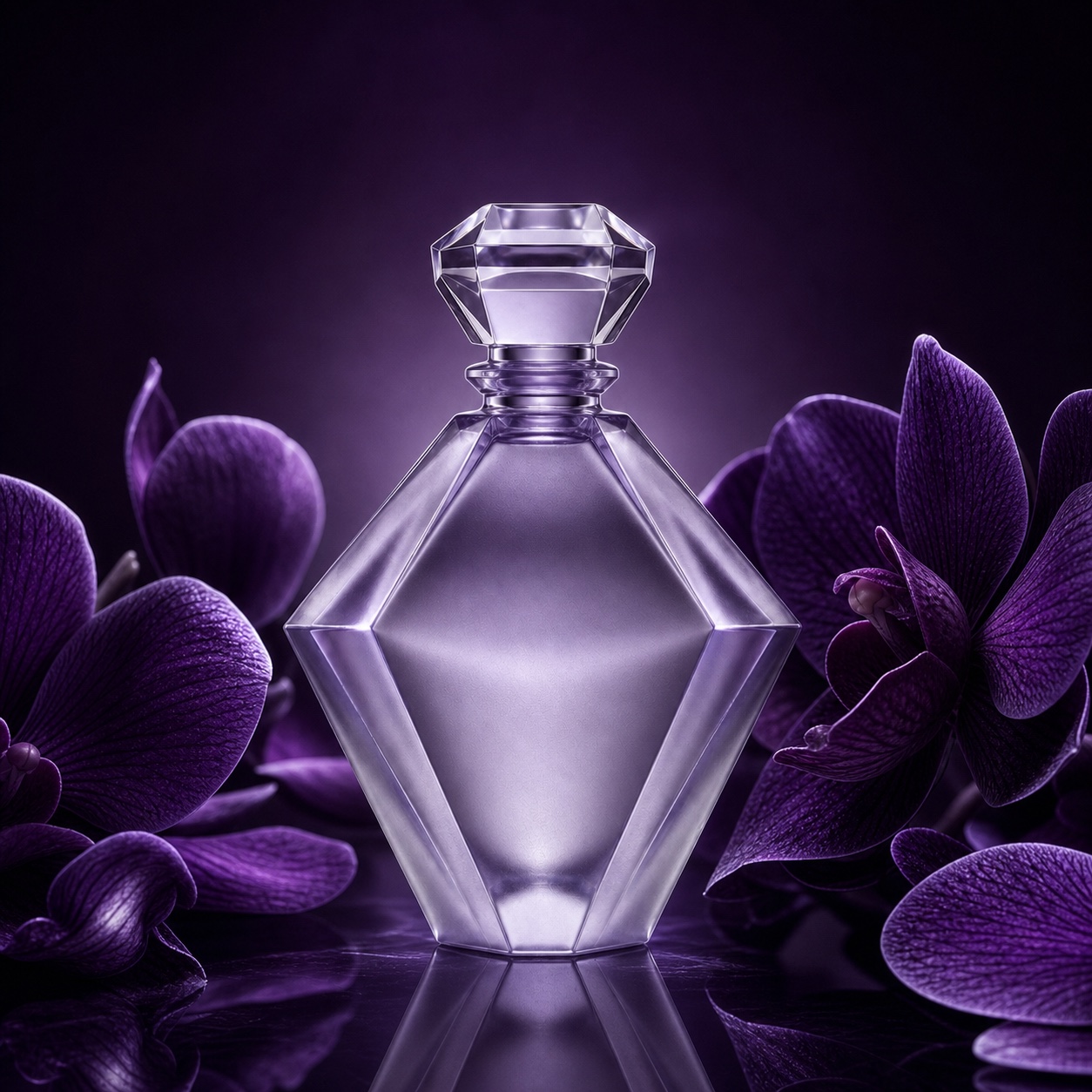
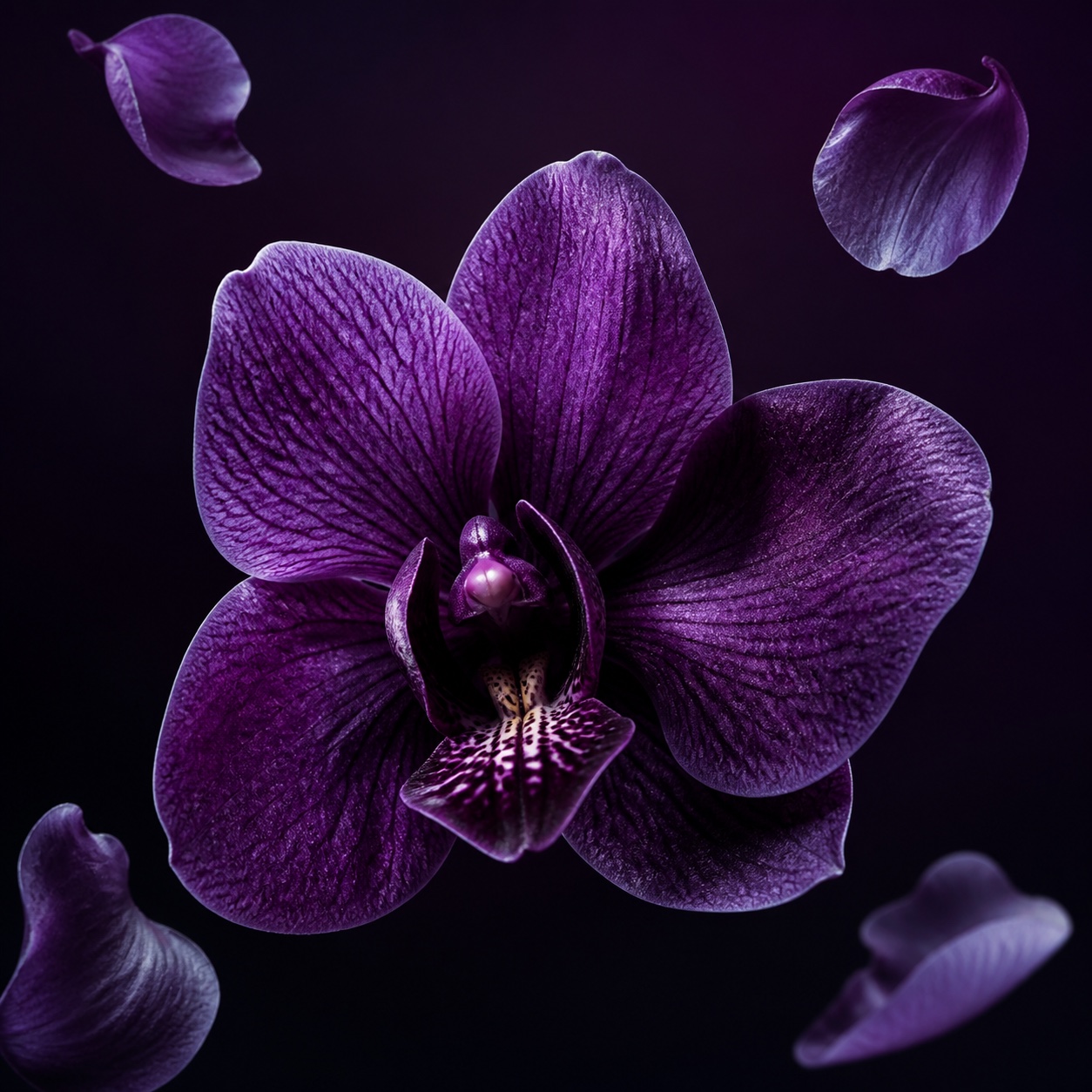
Violet orchid used as a color and texture referenceBefore
Final perfume campaign combining both visual referencesAfter
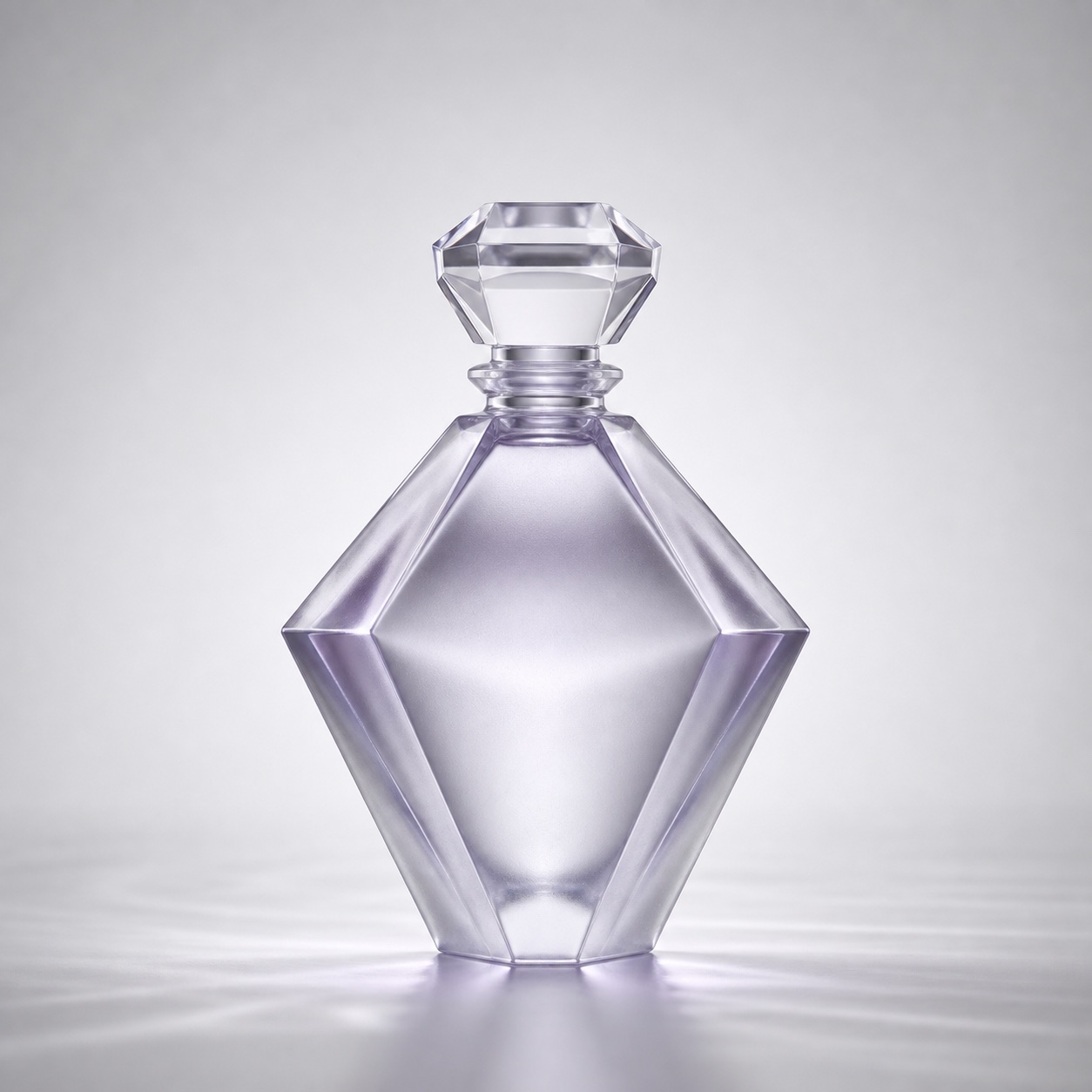
Faceted glass perfume bottle used as a shape referenceBefore

Keep the visual intent

Reference Image Creation

Combine visual references with a prompt to guide color, materials, composition, character, or product direction. DreamMotion AI uses those selected cues to guide a new image toward a more coherent visual direction.

Create with references
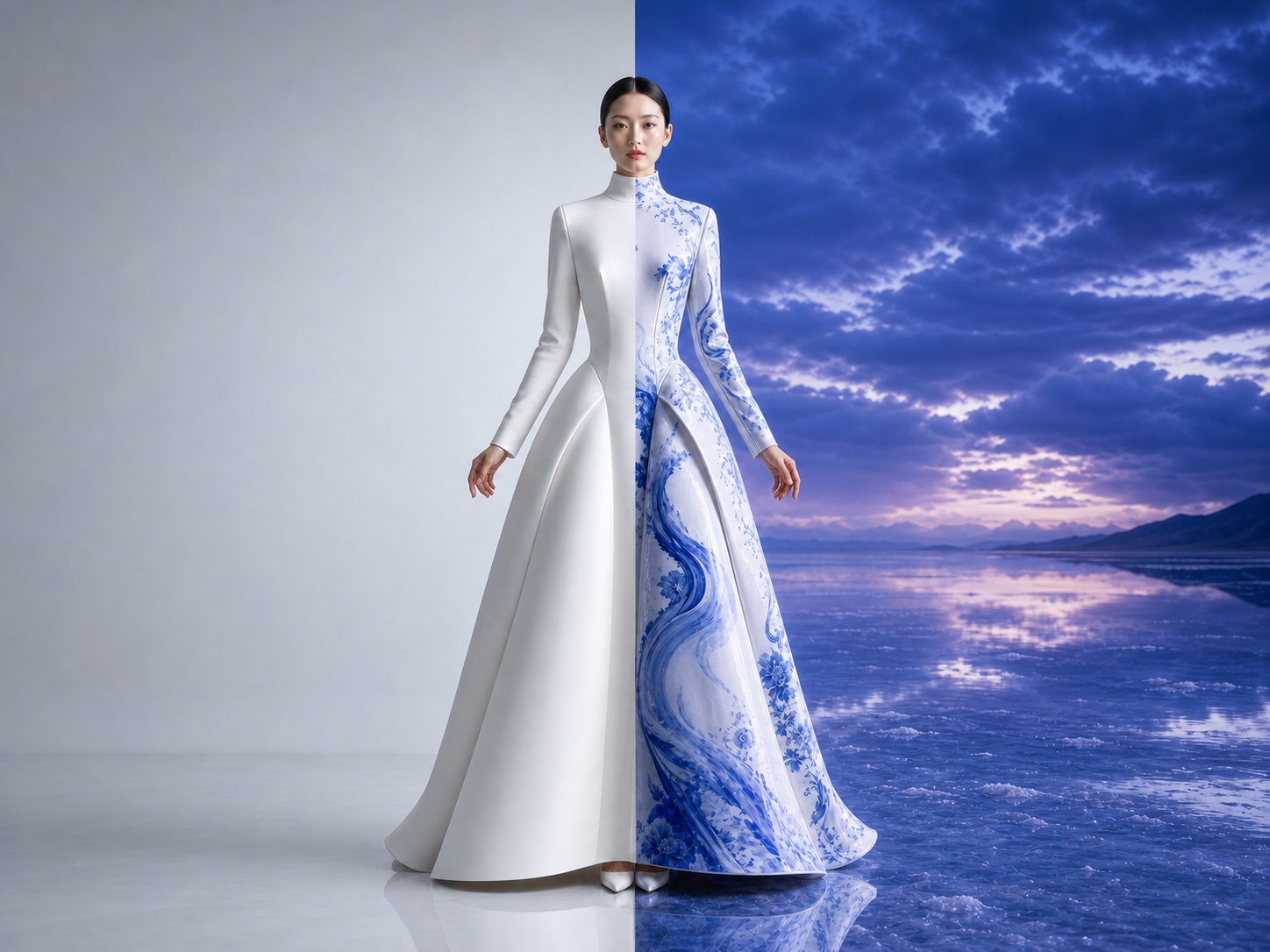
Before and after AI image editing comparison of a white couture portrait transformed into blue-and-white porcelain styling
BeforeAfter

Refine, restyle, repeat

AI Image Editing

Edit an existing image with focused instructions. Change the styling or background while guiding DreamMotion AI to retain the important subject, pose, and composition cues from the source.

Edit an image

A connected creative flow

From prompt to finished image or video

DreamMotion brings the AI Image Generator and AI Video Generator into one connected workspace. Start with a prompt or reference media, adjust the result, then download it or reuse it as the starting point for another creation.

  1. 01

    Describe or upload

    Write a prompt or add an image, short video, or set of visual references. Choose the input that best communicates what you want to create.

  2. 02

    Generate and adjust

    Choose an image or video workflow, set the format, and generate. Refine the prompt or references, then compare the new results with your session history.

  3. 03

    Download or continue

    Download the image or video when it is ready. To continue the idea, reuse the prompt or upload a result as a reference for another generation.

Good to know

FAQ About DreamMotion AI

Find quick answers about DreamMotion AI image and video generation, supported models, reference workflows, credits, prompts, and saved creations.

What is DreamMotion AI?+

DreamMotion AI is a connected creative workspace for creating and refining images and short videos. It combines prompt discovery, reference-guided image creation, image editing, an AI Image Generator, an AI Video Generator, and creation history. Start with text, an image, a short MP4, multiple visual references, or a gallery example, then carry the creative direction through focused generation passes.

How does the DreamMotion AI Image Generator work?+

Describe the image you want, choose an available model, and set the aspect ratio, resolution, and quality options supported by that model. You can begin with text or add reference images to guide the subject, composition, palette, or style. After generation, adjust the prompt, compare session results, or upload the strongest image as a reference and describe the changes you want.

What can I create with the AI Video Generator?+

Create short cinematic scenes, animated artwork, product moments, social clips, and motion experiments. Text to Video begins with a written scene, Image to Video animates a still, Video to Video transforms a short clip, and References to Video combines compatible visual sources. DreamMotion AI offers Veo 3.1, Seedance, and MiniMax video models with model-specific audio and reference controls.

Which AI models are available?+

DreamMotion AI currently offers Nano Banana 2, Nano Banana Pro, and GPT Image 2 for image generation. Video options include Google Veo 3.1, Doubao Seedance 2.0 and 2.5, and MiniMax H3. Each model exposes only its supported input modes, durations, resolutions, references, and audio behavior.

How many credits does generation use?+

Image credit use depends on the selected model, resolution, and quality. Video credit use depends on resolution and duration. DreamMotion AI shows the exact cost before generation, and credits are automatically refunded when a generation job fails.

Do I need design or video editing experience?+

No. DreamMotion AI works with natural-language creative direction, so you can begin by describing the result in your own words. More detailed prompts provide greater control, but professional design or editing software is not required. The generator keeps the main settings approachable, while the prompt gallery offers practical examples of framing, lighting, materials, action, and mood.

How can the prompt gallery improve my results?+

The DreamMotion AI gallery connects finished images with the prompts that shaped them, while the homepage case wall adds selected video examples. Study how each prompt describes its subject, environment, camera, materials, light, motion, and mood. Open a relevant example, adapt the useful structure, and continue in the AI Image Generator or AI Video Generator.

Where are my creations saved?+

Signed-in users can review generated images and videos in DreamMotion AI creation history. Open an individual result to download it, reuse its prompt, or continue developing the idea. You can also upload a saved image or short video as reference material for another supported generation workflow.

Start creating with DreamMotion AI

Turn a prompt or reference media into polished visuals with DreamMotion. The AI Image Generator and AI Video Generator share one focused workspace, so you can create, refine, transform, and keep developing every idea.

10 free credits on sign-up · No credit card required